How to rotate on the horizontal way an object ?
Asked on 2024-07-27
1 search

To rotate an object horizontally, you can use the "rotate" feature in SF Symbols 6. This feature allows you to add dynamic movement to a symbol by imitating how an object behaves in the real world or by acting as a visual indicator. For example, you can rotate certain parts of a symbol, such as the fan blades of a desk fan, to create a more dynamic and realistic effect.
Here's a brief overview of how you can achieve this:
- Select the Layer to Rotate: Choose the specific layer of the symbol that you want to rotate.
- Set the Rotation Anchor Point: Use the "scan rotate" option to set a rotation anchor point. This point will be the center around which the layer rotates.
- Adjust the Anchor Point: If necessary, move the anchor point to the center of the layer you want to rotate. You can use the "snap to points" button to align the anchor point with the vectors of the path.
- Apply Rotation: Once the anchor point is set, you can apply the rotation to the selected layer.
For more detailed instructions, you can refer to the session What’s new in SF Symbols 6 (13:32).
Additionally, if you are working with 3D assets and need to rotate them, you can use RealityKit APIs. RealityKit allows you to rotate objects along any of the three axes. For example, you can apply a negative 90-degree rotation in the X-axis to adjust the orientation of an imported asset.
For more information on rotating 3D assets, you can refer to the session Optimize your 3D assets for spatial computing (05:34).
Relevant Sessions
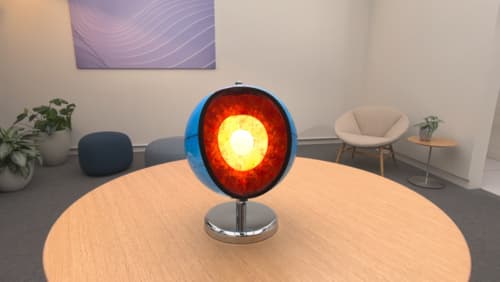
Explore object tracking for visionOS
Find out how you can use object tracking to turn real-world objects into virtual anchors in your visionOS app. Learn how you can build spatial experiences with object tracking from start to finish. Find out how to create a reference object using machine learning in Create ML and attach content relative to your target object in Reality Composer Pro, RealityKit or ARKit APIs.
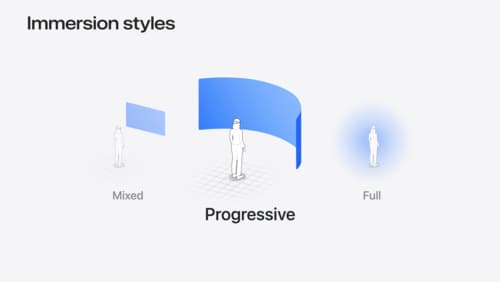
Dive deep into volumes and immersive spaces
Discover powerful new ways to customize volumes and immersive spaces in visionOS. Learn to fine-tune how volumes resize and respond to people moving around them. Make volumes and immersive spaces interact through the power of coordinate conversions. Find out how to make your app react when people adjust immersion with the Digital Crown, and use a surrounding effect to dynamically customize the passthrough tint in your immersive space experience.

Optimize your 3D assets for spatial computing
Dive into an end-to-end workflow for optimized 3D asset creation. Discover best practices for optimizing meshes, materials, and textures in your digital content creation tool. Learn how to harness shader graph, baking, and material instances to enhance your 3D scene while optimizing performance. Take advantage of native tools to work more effectively with your assets and improve your app’s performance.